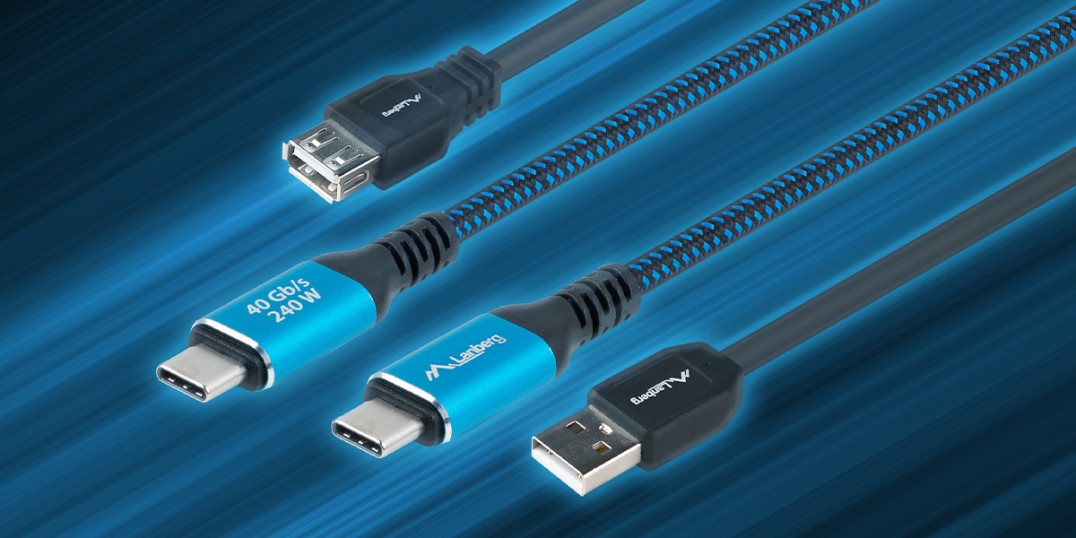
USB (Universal Serial Bus) is a technology without which it is difficult to imagine work and daily life today. With this one standard we charge phones, connect drives and monitors, transfer data and power laptops. Over time, however, so many versions and names have emerged that choosing the right solution can be a challenge. This guide organizes the most important terms and tells you how to consciously choose a cable for the task.
Why is USB sometimes confusing?
There are three layers to USB: the protocol version (determines speed and features), the physical connector (the shape of the plug/socket) and the power supply (how many watts the charger-cable-device combo will "carry"). If at least one element has lower capabilities, the whole set operates within its limits. In practice, this means that a high-speed drive connected with a "slow" cable will work with limited bandwidth, and a laptop will not charge with a cable without Power Delivery support.
A brief history of speed and power
From 1.1 to 3.x - the foundations
USB 1.1 (12 Mbps) supported accessories with low requirements. USB 2.0 (480 Mbps) opened the way for flash drives and cameras. The real leap came with the 3.x family - from 5 Gbps(3.0/3.2 Gen 1), to 10 Gbps(3.1 Gen 2/3.2Gen2), to 20 Gbps(3.2 Gen 2×2). These values translate into real comfort in working with large files and fast backups.
USB4 - one cable for multiple tasks
USB4 standardizes the "all in one cable" approach: up to 40 Gbps, image transfer (DisplayPort Alt Mode) and power over the same port. In modern laptops, this often means that one cable to the docking station solves the subject of monitor, network, accessories and charging.
Connector types: how to recognize them and use them sensibly
USB-A, USB-B, mini/micro
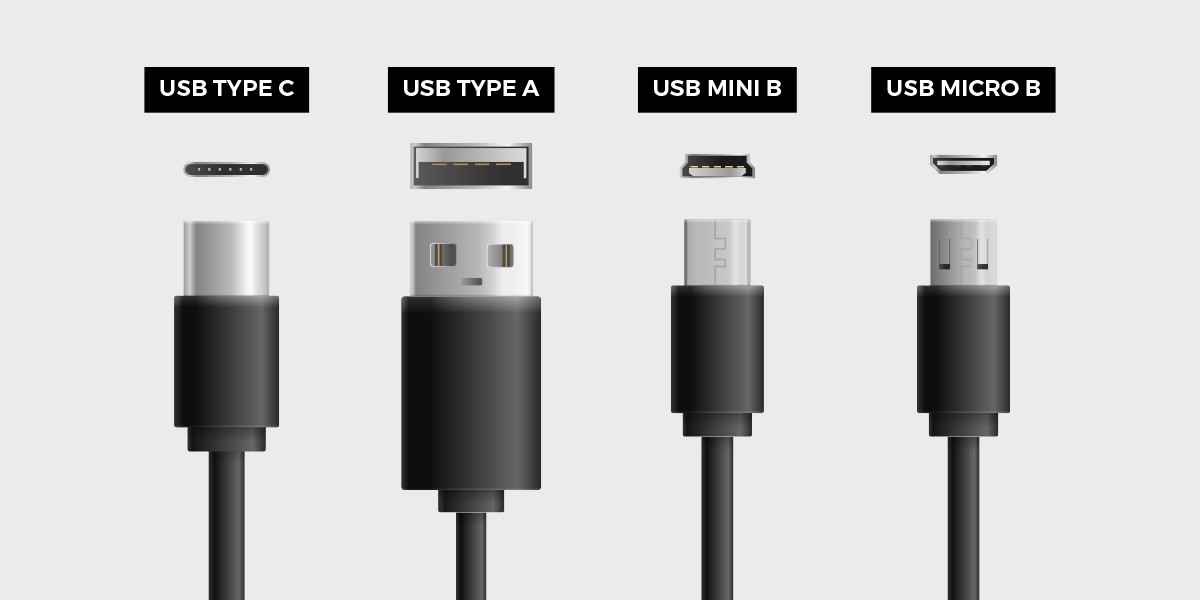
Classic USB-A is a rectangular port known from desktop computers and chargers. USB-B - the "square" from office devices (printers, scanners). Mini-USB and Micro-USB are transitional stages of the mobile era - increasingly rare today.
USB-C - the new standard
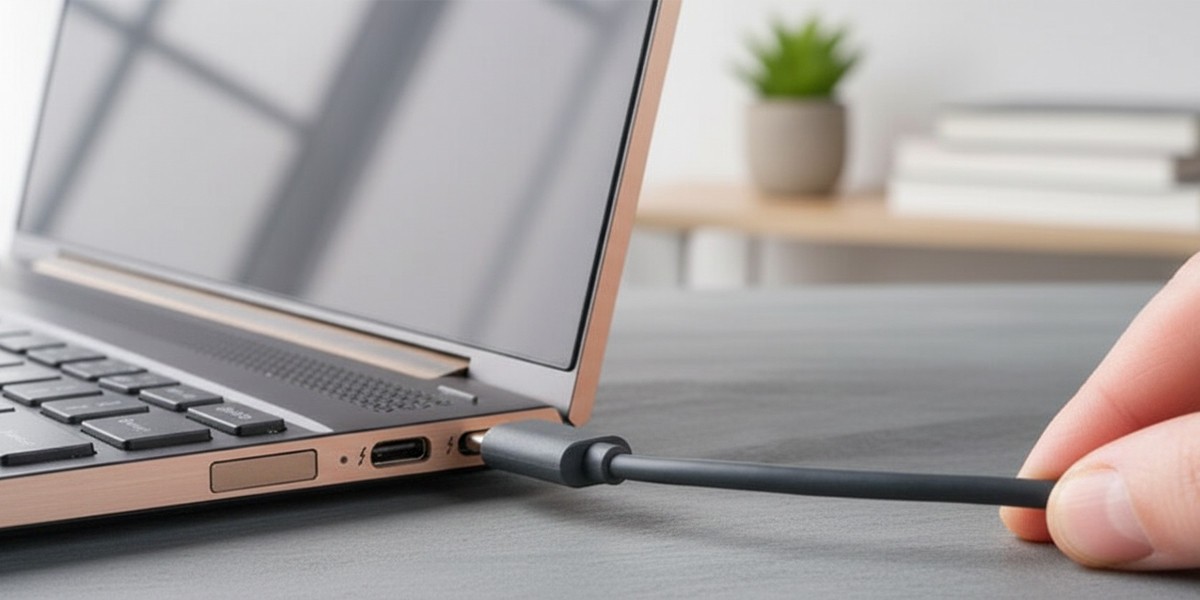
USB-C is reversible, compact and versatile. It's not just a more convenient plug, but more importantly a carrier for higher speeds, power (USB Power Delivery) and video. That's why it has become the main and sometimes the only port on many notebooks.
Port colors: a hint, not an oracle
A blue port is sometimes associated with SuperSpeed (USB 3.x), and red/yellow often signals the ability to charge a phone while the computer is asleep. However, it is important to remember: the colors are not an official standard. It's always a good idea to look at the manufacturer's specifications or the markings next to the slots (e.g., "SS," "10Gbps," lightning/battery icon).
Power and charging: from 2.5 watts to 240 watts
In the beginning, USB offered just a few watts - enough for accessories and phones. Later came faster charging mechanisms (BC 1.2), and the breakthrough came with USB Power Delivery (PD). PD up to 100 watts powers most ultrabooks and monitors with USB-C, and PD 3.1 (EPR) up to 240 watts allows even more demanding machines. For 5 A cables, a cable with an e-marker - a chip that identifies the cable's capabilities and takes care of safety - is required.
USB-C and alternate modes (Alternate Mode)
USB-C can simultaneously transfer data, power a device and display an image. This happens thanks to so-called Alternate Mode - most commonly DisplayPort Alt Mode or HDMI Alt Mode. In practice, one USB-C cable can replace a bunch of cables: it will connect a laptop to a 4K monitor, a plugged-in hub and a network, while charging it at the same time.
USB-C vs. Thunderbolt: which to choose?
USB-C is a connector - its capabilities are determined by the controllers in the devices and the parameters of the cable. Thunderbolt 3/4 uses the same connector, but guarantees up to 40 Gbps, supports PCIe (e.g., eGPU stations) and multi-monitor configurations. For professionals, it's a convenient performance "sure-fire". It's worth remembering: every Thunderbolt port is USB-C, but not every USB-C port supports Thunderbolt.

How to choose the right cable? (Decision guide)
1) Data throughput
Think about what you use the cable for most often. For mice and keyboards, the "5 Gbps" standard will suffice, but for NVMe drives or working on video, it's better to aim for "10/20/40 Gbps." Look for the numbers on the packaging (e.g., "USB 10 Gbps", "USB4 40 Gbps") - it's easier to read than the name "3.0/3.2" alone.
2) Power supply (PD)
Check the power requirements of the device. Ultrabooks usually accept 60-100 watts, workstations - more. If your hardware requires 140-240 watts, make sure both the charger and cable support PD 3.1 (EPR), and the cable itself has an e-marker.
3) Terminals and scenario
Match the connectors to both sides: USB-A↔USB-C for connecting new devices to older ports, USB-C↔USB-C for modern laptops and phones, USB-C↔DisplayPort/HDMI when you want to output directly to a monitor/TV.
4) Length and quality
The longer the cable, the harder it is to maintain the highest performance. For 20-40 Gbps connections (and for high PD power), prefer shorter, certified cables from trusted manufacturers.

Mini-FAQ: the most common problems
"USB-C cable does not charge the laptop".
Most often there is no Power Delivery support or the power is too low. Also check that the port on your laptop accepts power (not all USB-C can do this) and that the cable has an e-marker for 5 A.
"The drive runs slow."
Speed is limited by the weakest element in the chain. If the drive is fast and the cable/port is slower, the transfer will fall to their capabilities. Choose a cable and port compatible with the speed of the device.
"Monitor via USB-C doesn't work."
Not every USB-C supports Alt Mode. Check the specifications of your laptop and monitor, and if necessary, use a USB-C↔DisplayPort/HDMI cable with declared Alt Mode or a docking station.
Lanberg recommends: simple choices without guesswork
For users who want to "just be sure," it's worth betting on cables and accessories with clearly stated parameters:
- USB-C↔USB-C with PD 100-240 W and 20/40 Gbps bandwidth - for USB-C laptops, drives and monitors.
- USB-A↔USB-C 5-10 Gbps - for newer devices plugged into older ports.
- USB-C→DisplayPort/HDMI (Alt Mode) - stable video output without daisy-chain adapters.
- USB-C hubs and docking stations - one cable for office work: monitor, network, peripherals and charging.
Lanberg products have clear flow and power markings and, where necessary, an e-marker, making it easier to select an accessory for a specific task.

The most important conclusions at the end
USB is backward compatible, but operates at the speed of the weakest link. USB-C isn't just a new plug shape - it's data, video and power at the same time, as long as the hardware and cable support it. When choosing a cable, go by the numbers (Gbps, W), match the ends to the devices, and look for certification and e-marker at higher powers and currents. This will help you avoid bottlenecks and give you trouble-free, predictable operation.


